 Shipvo
Your assistant can test your app now, and it takes four minutes to connect
Connect Claude, ChatGPT or Cursor to the hosted Shipvo simulator and ask it to buy something from your app. What the remote MCP path looks like, the prompts that find real bugs, and what an assistant cannot tell you.
 Hans AdeOctober 31, 20263 min read
Most apps are tested by the person who wrote them, tapping the path they already know works. A first-time customer does something different: they read what is on the screen, take the obvious route, and stop where it is unclear.
An AI assistant behaves a lot like that customer. It cannot see your code or your test ids. It gets the screen as an accessibility tree, the same structure a screen reader uses, and it acts on what it reads. That is a useful kind of tester, and with Shipvo you can point one at your app without an emulator, a Mac or a phone.
What the assistant actually gets
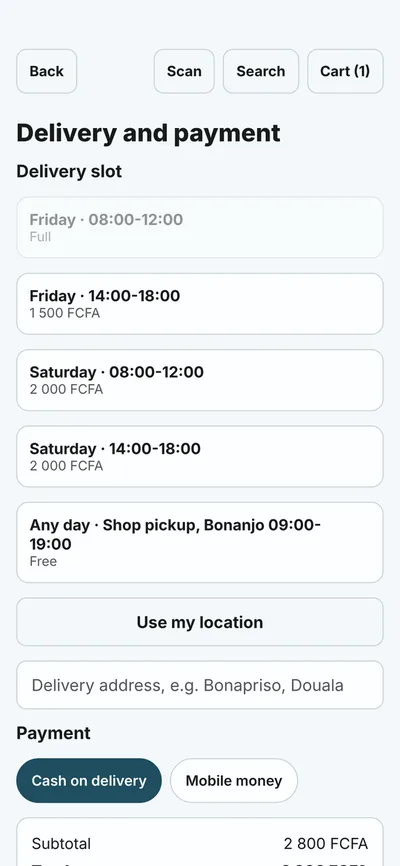
When an assistant opens your app, it receives text like this, not pixels:
- heading "Delivery and payment" [level=1] [ref=e30]
- button "Friday 14:00-18:00, 1 500 FCFA" [ref=e33]
- button "Use my location" [ref=e38]
- radio "Mobile money" [ref=e41]
- button "Place order" [ref=e44]
It taps by reference (tap(e44)), types into named fields and scrolls like a thumb. If it cannot find your button by name, a person using a screen reader probably cannot either, which makes missing labels the first bug it finds.
Connect it in four steps
The hosted simulator lives at sim.shipvo.dev and runs one sandbox per key. The full walkthrough is in Test with an assistant; here is the short version.
- Sign in once.
npx -y @shipvo/cli loginopens GitHub sign-in and stores a test key. It comes with a quota of sandbox minutes and expires after 30 days. - Print the config.
npx -y @shipvo/cli mcpprints the exact settings for Claude Desktop, Claude Code and Cursor, with your key filled in. - Paste it in. ChatGPT's custom connectors cannot send headers, so for ChatGPT the key goes in the URL path:
https://sim.shipvo.dev/mcp/<key>. - Ask. Start with "list the Shipvo apps I can open, then open one and tell me what is on the first screen."
That is the whole remote path. Nothing runs on your machine, and sessions survive reconnects.
Prompts that find real bugs
Vague prompts get vague answers. These ones work because each has a thing to observe and a way to be wrong:
Open myshop@latest. Buy the cheapest item with mobile money. Tell me every screen
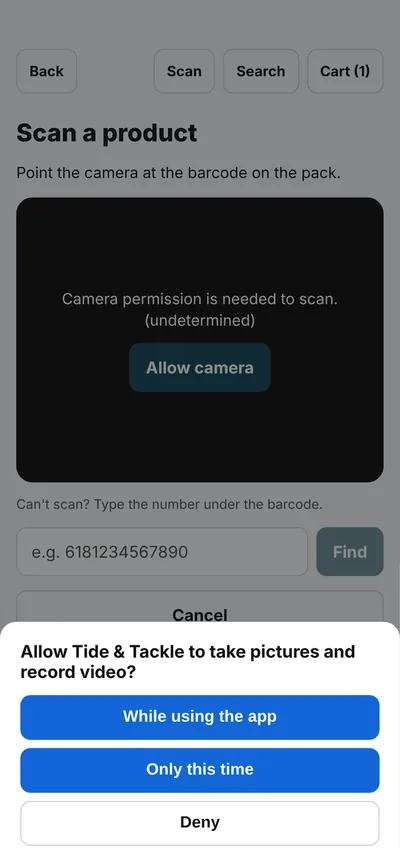
you saw, and stop and report anything that confused you or did not work.Open myshop@latest. Deny the camera permission when asked, then try to scan a code.
What does the app show? Is there a way forward?The second one is worth running on every app that has a camera button. Denying a permission is the path developers rarely test and users hit all the time.
The check you can trust
Assistants are confident narrators. A model can tell you it placed an order when it did not. So do not grade the story; grade the outcome.
At the end of a session, end_session returns what your app actually sent to its backend: the steps taken, the time, and the orders posted. In our own test, an assistant placed a full order in 18 steps and 76 seconds, and the order was confirmed by the backend, not by the assistant's account of events.
Open myshop@latest. Use the fingerprint option but make the payment fail. Confirm
that no order was placed, using end_session at the end.
What it cannot tell you
The simulator is not a phone. It renders your app on the web and simulates the device, so it does not catch native crashes, real camera or GPU behaviour, or how your app runs on a slow phone. Everything simulated is labelled: receipts start with SIMULATED- and the device log marks each event simulated: true. We publish where the simulator and real devices differ in the parity results, including the gaps.
Use the assistant for exploration, the questions you would not think to write down. When you find a flow worth protecting, write it as a typed test so it runs on every pull request. The assistant finds the bug once; the test makes sure it stays fixed.